
ProductCrew and access
The crew list, the rates, and who can change what.
The Lists hold everything the calendar books from: crew, roles and rates, teams, units and locations. Every member of the production can read them. Editors can change them.
A contact sheet that knows who's engaged when.
Each person has a default role, a department, phone and email, and a start and end date. On top of that, engagement periods record when they're on contract and when they're daily. Periods can't overlap.
- The calendar's crew list groups people by how they're engaged on the day you're looking at.
- Labour hatches out the days before someone starts and after they finish.
- The dashboard lists first days for the fortnight ahead.
| Name | Role | Engagement | Start |
|---|---|---|---|
| Mara Quinn | Gaffer | Contract | 28 Sep 2026 |
| Mike Donnelly | Best boy | Contract | 28 Sep 2026 |
| Kate Mercer | Electrician | Contract | 5 Oct 2026 |
| Chris Lawson | Desk op | Daily | 14 Oct 2026 |
| Nell Hartley | Electrician | Daily | 16 Oct 2026 |
Two day rates per role, and the hours they cover.
Every role has a short code, a colour, a rig day rate and a shoot day rate, each with its contracted hours. The hourly rate is worked out from those, and that's what overtime is charged at.
- Day flags add to a day's cost: hours at a multiple of the hourly rate, a fixed amount, or a rate times a quantity, such as mileage.
- New productions start with one flag, OT, charged at twice the hourly rate.
- Roles can be left off the cost report, for anyone who isn't billed to the production.
| Code | Role | Rig rate | Shoot rate | Hours, rig / shoot |
|---|---|---|---|---|
| GAF | Gaffer | £330 | £350 | 10 / 11 |
| BB | Best boy | £290 | £310 | 10 / 11 |
| ELE | Electrician | £215 | £230 | 10 / 11 |
| DESK | Desk op | £290 | £300 | 10 / 11 |
| RIG | Rigger | £205 | £215 | 10 / 10 |
Example figures on a fictional production.
How the calendar is organised.
Teams and jobs
Teams are the bands crew are booked into, such as a shoot crew or Rig 1, each with its own colour. On any day a team can be given a job: rig, swing, build, pre-light, shoot or de-rig to start with, and any others you add, each with its Flow colour.
Units
Main unit, second unit and the rest, each with a colour and a short code for Flow. Units carry the shoot and pre-light locations for each day, and crew can be booked straight to a unit too.
Unfilled slots
Book a role before you have a person: a slot card holds the place on the day. Drop someone onto it and they take the slot and its role. The cost report can include unfilled slots or leave them out.
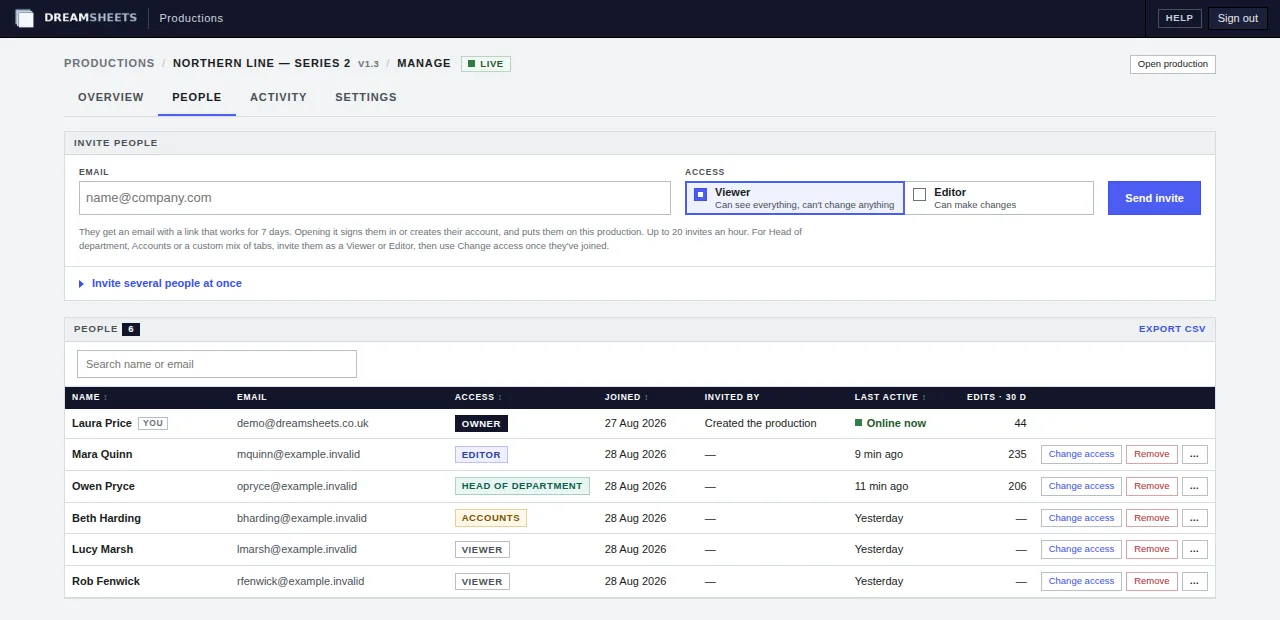
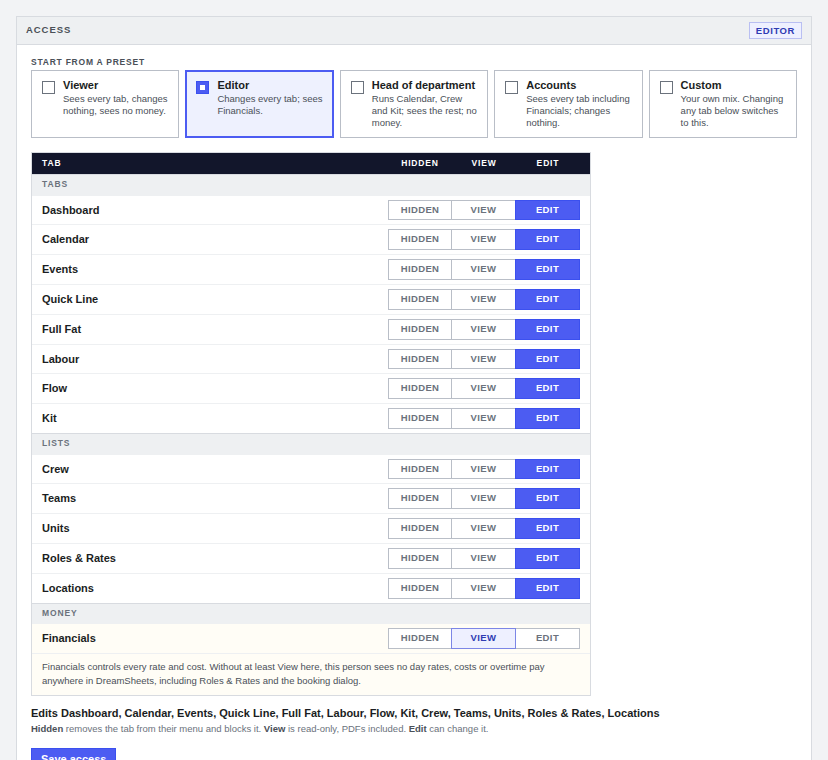
Invite people as Editors or Viewers.
The owner of a production invites people by email from the Team page. Viewers can see everything and change nothing. Editors can make changes. The owner can switch someone between the two, or remove them, at any time.
- Invite links work once and expire after seven days. Pending invites can be resent or revoked.
- If the email is slow, the owner can copy the link and send it another way.
- Ownership can be handed over to someone already on the production, with a confirmation first.
- A Viewer's name carries "read only" in the top bar, so nobody wonders why they can't drag.
Start each job from the last one.
When you create a production you can copy parts of another one you're on: roles and rates, day flags, jobs, teams, units, locations, crew and their engagements. The schedule itself is never copied.
Switch between shows
Everyone sees the list of productions they belong to, live ones first. Open one to work in it, and Switch show to go back to the list.
Wrap and reopen
Wrapping a production makes it read-only for everyone, and it moves to the archived list. The owner can reopen it if something needs changing.
Export and delete
The owner can export the schedule and lists as a JSON file. Deleting a production asks for its full name to be typed and two confirmations.
Put your next production on DreamSheets.
Tell us about the job and when prep starts, and we'll be in touch.