
ProductScheduling
Book the crew on the calendar. Read it back everywhere else.
The calendar is the only place bookings are made. The dashboard, Quick Line, Full Fat and Labour are views of the same bookings, laid out for the people who read them.
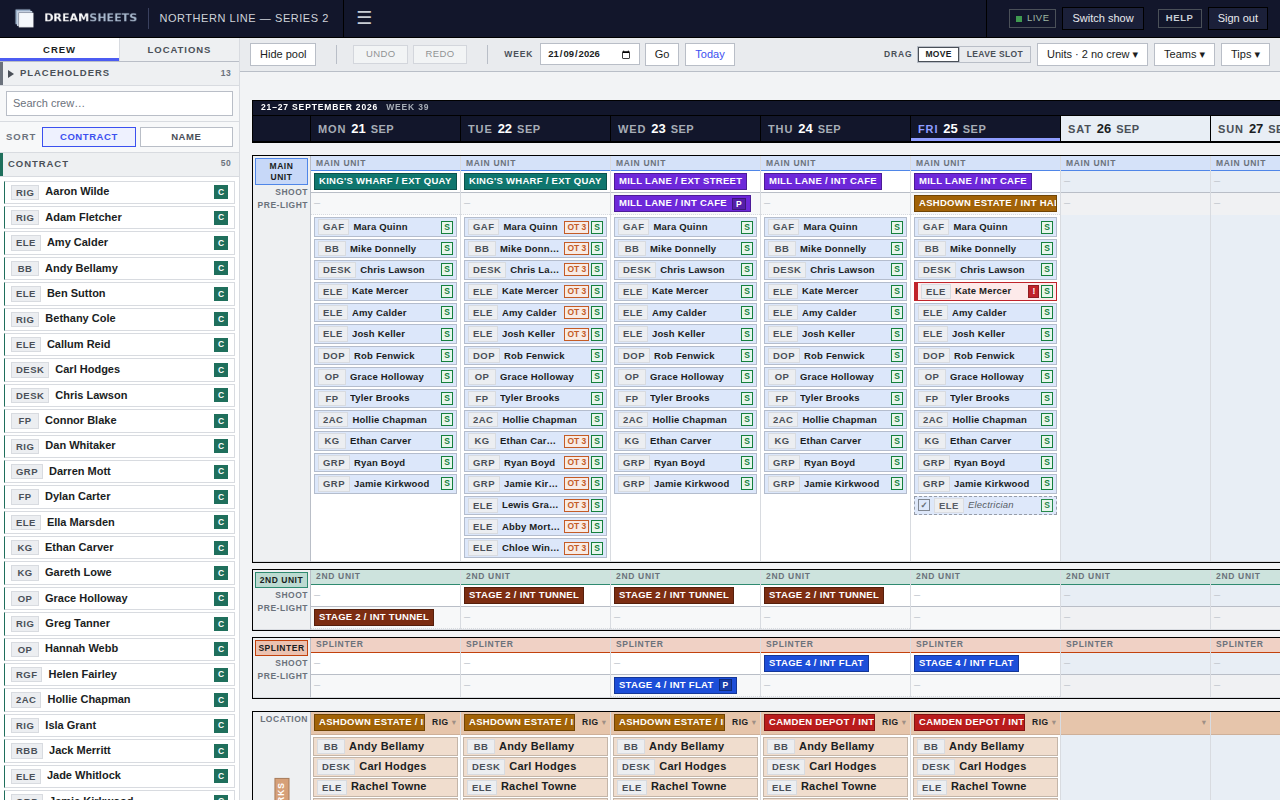
A week per block, your units and teams down the side.
Weeks stack down the page and more load as you scroll. Each unit has a shoot line and a pre-light line. Each team has a location strip, the job it's on, and the crew booked to it that day.
Drag to book
Drag a person from the crew list onto a team's day. Hold Ctrl or Cmd to copy them to another day instead of moving them. Drag a location onto a team strip or a unit's shoot or pre-light line.
Leave the slot behind
Switch the drag mode to Leave slot and moving someone off a day leaves an unfilled slot for their role, so the gap stays visible until it's filled.
Copy a team's day or week
Right-click a day to copy the team and paste it onto another. Right-click the team name to copy, paste or clear a whole week. Overtime and shoot-day marks aren't pasted.
Crew list by engagement
The crew list beside the calendar groups people as contract, daily or not engaged on the day you're looking at. Search by name, and sort by contract or name.
Conflicts and long runs
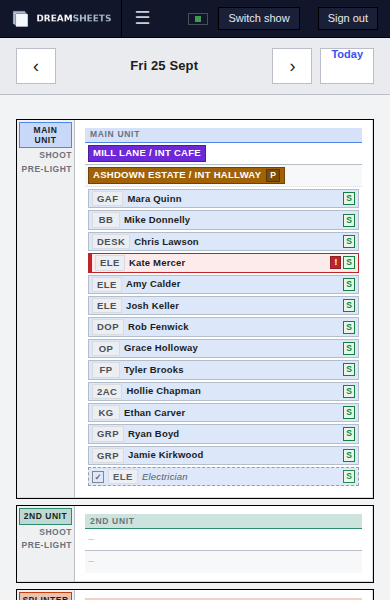
Someone booked twice on one day turns red on both cards. Sixth and seventh consecutive days carry a 6TH or 7TH mark, and the booking dialog warns you.
Undo that survives a reload
Your undo and redo history is kept per person and per production, so closing the tab doesn't lose it. Undo only ever reverses your own changes.
Everything about a person's day, in one dialog.
Click a card, or pick Edit booking from the right-click menu. Select several cards first and the same change applies to all of them.
- Role for the day when someone steps up or covers, instead of their usual role.
- Day type: holiday, or a shoot day at the role's shoot rate.
- Day flags such as overtime, with hours, and the day's added cost shown as you type.
- A note of up to 200 characters.
| Keys | What they do |
|---|---|
| Ctrl/Cmd + Z | Undo your last change |
| Ctrl/Cmd + Shift + Z, Ctrl + Y | Redo |
| Shift + drag | Draw a box to select cards |
| Ctrl + click | Add or remove one card from the selection |
| Ctrl/Cmd + A | Select everything |
| Delete, Backspace | Remove the selected bookings |
| Esc | Clear the selection or close a dialog |
Today, before anyone asks.
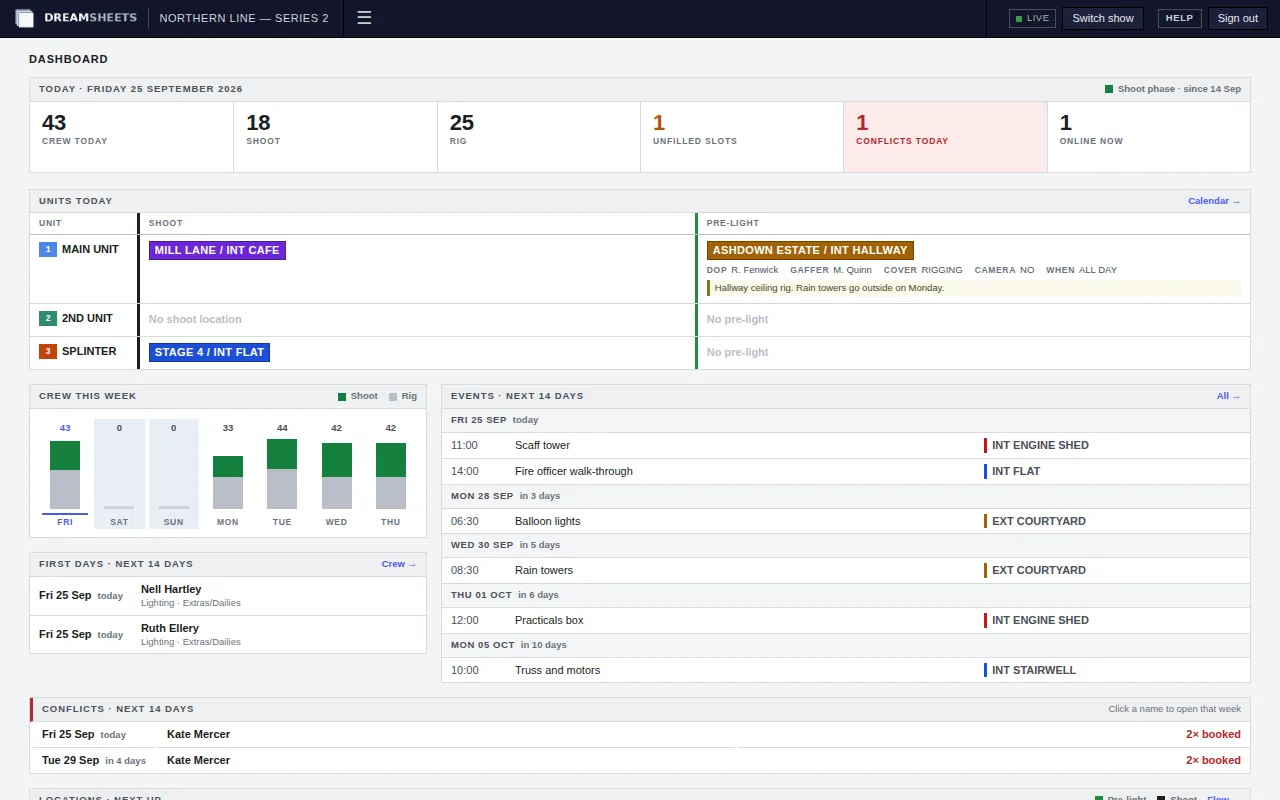
Opening a production lands on the dashboard. It shows today's headcount split into shoot and rig, where each unit is shooting and pre-lighting, and anything that needs attention.
- Unfilled slots and conflicts today, with the next fourteen days of conflicts listed by name.
- Crew this week as a bar per day, shoot against rig.
- First days for anyone starting in the next fourteen days.
- Events and locations coming up, with the next pre-light and shoot date for each set.
Three ways to read the same schedule.
Quick Line
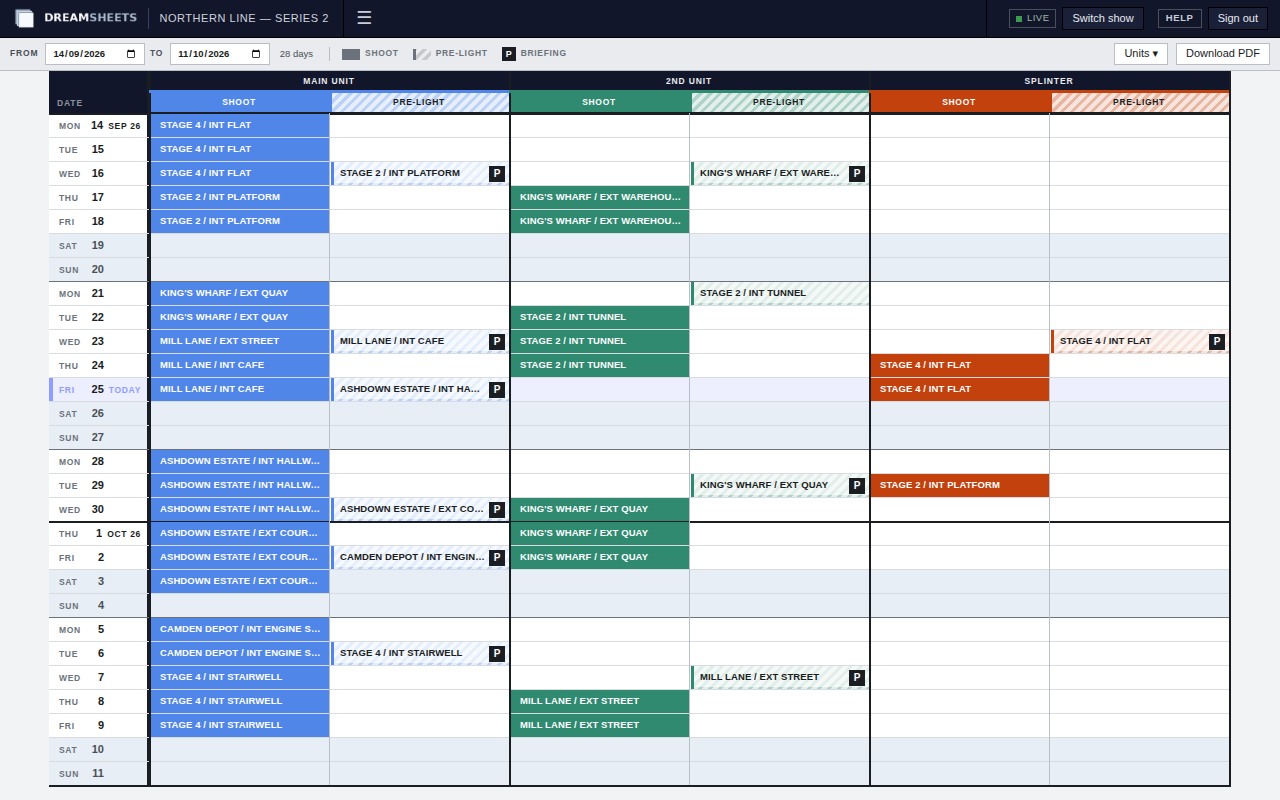
One row per date and a shoot and pre-light column for each unit, taken from the unit days on the calendar. Pick the dates and units you want, then download it as an A3 PDF.
- Shoot days in the unit's colour, pre-light days striped
- A P marks a pre-light with a briefing; click it to read the briefing
- Your date range and hidden units are remembered
Full Fat
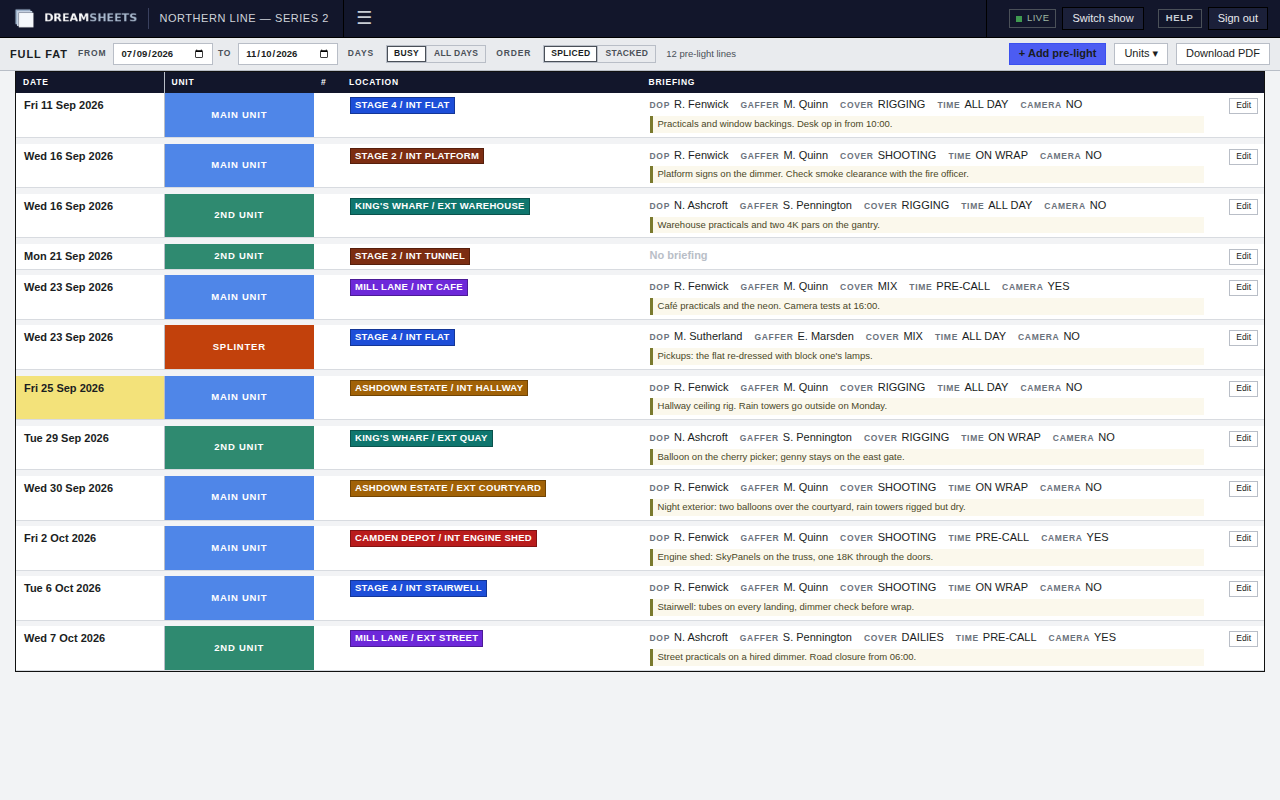
Every pre-light, one line per unit, date and location, with the briefing beside it: DoP, gaffer, cover, time, camera and notes. Edit a line in place and the calendar, Quick Line and Flow follow.
- Units spliced together by date, or stacked one after another
- Busy days only, or every day in the range
- A3 landscape PDF that follows what's on screen
Labour
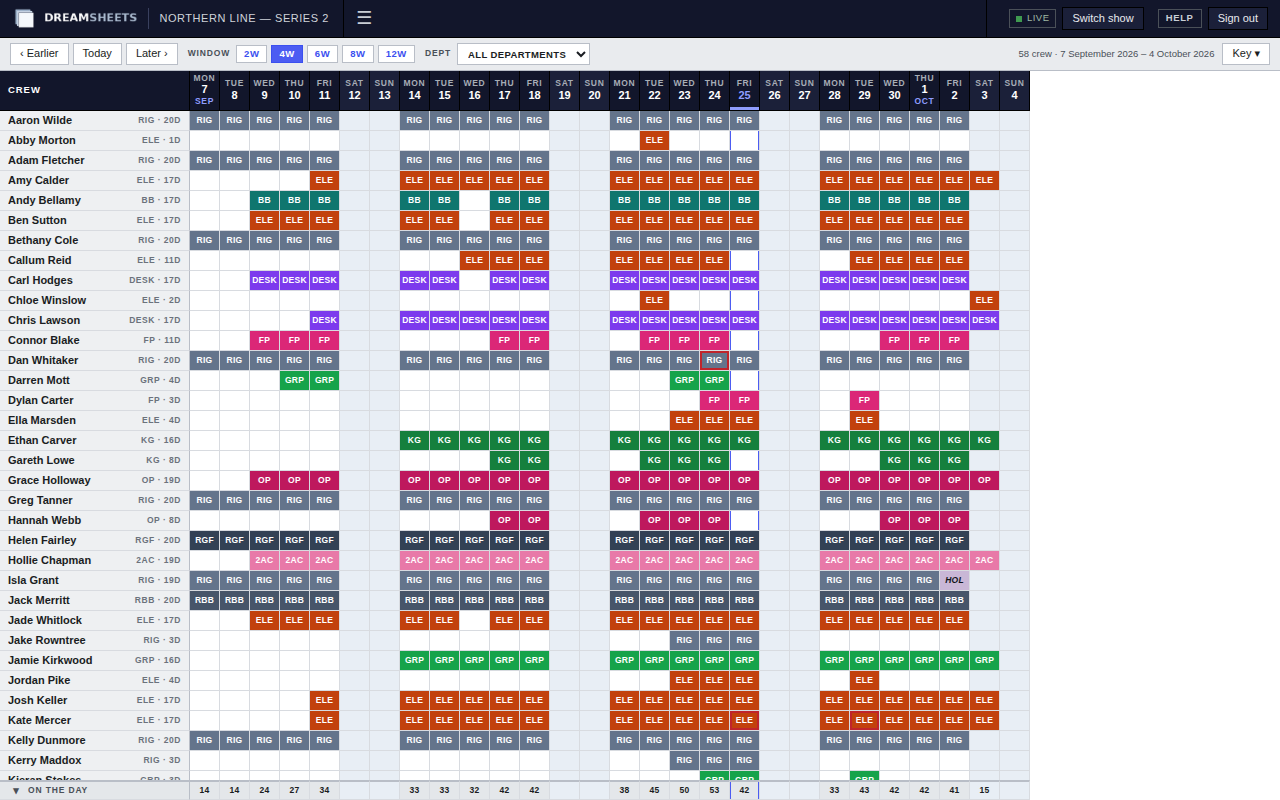
One row per person and one column per day, for two to twelve weeks. Each day shows the role they're booked as, in that role's colour. Filter by department.
- Days worked shown against each name
- Holidays and double bookings marked
- An On the day total under every column, which expands into counts by role
Check the day from set.
On a phone the calendar shows one day at a time, and you step through the days with the arrows. It's for reading: booking and editing are done on a larger screen.
Put your next production on DreamSheets.
Tell us about the job and when prep starts, and we'll be in touch.